
Knowledge Base
Help Center articles
Download several robots in one ZIP
Want the best few robots of a symbol at once? Collect them in a ZIP and download them in one file, for MT4 or MT5.
Plan: a plan that includes the Prop Firm Robots App.
Add robots to the ZIP
- Set the Account size and risk, and Random if you use it, first. Each robot takes its lots and its randomising at the moment you add it.
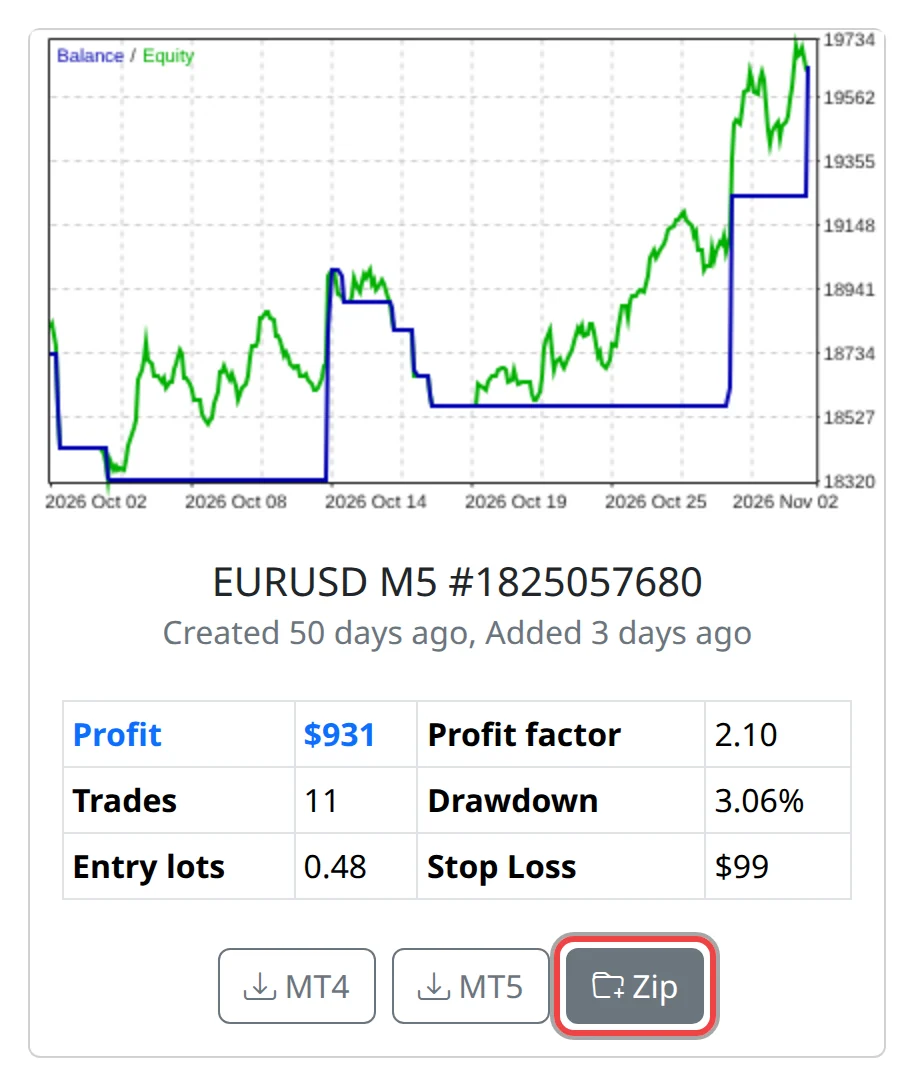
- To add one robot, click Zip on its card. The message Expert Advisor added to Zip. confirms it.
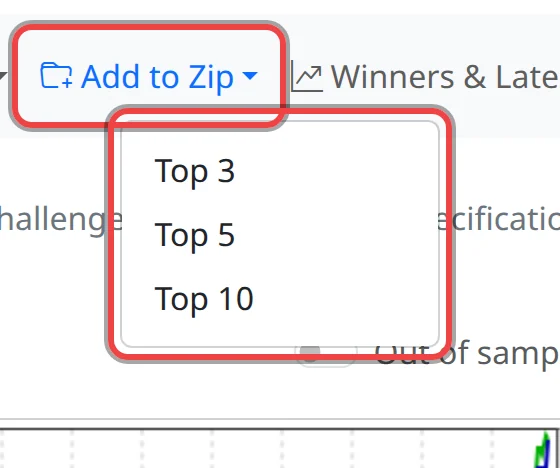
- To add the best robots in one go, click Add to Zip at the top and choose Top 3, Top 5 or Top 10. These are the first cards in the current Sort by order, so sort the robots the way you want first.
Download the ZIP
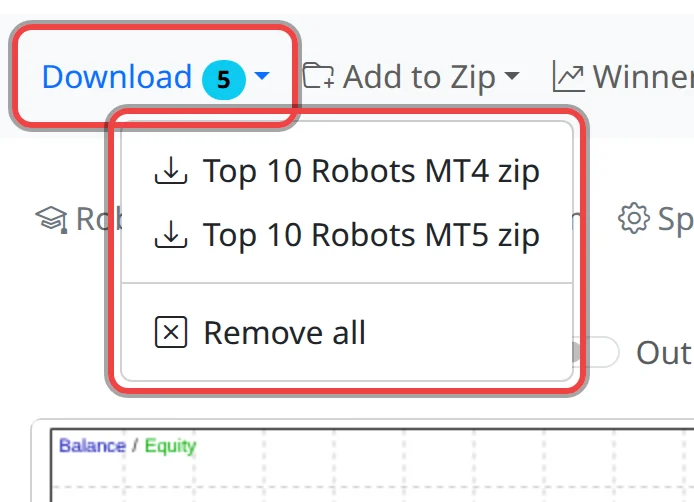
- Click Download at the top left. Its badge shows how many robots are in the ZIP.
- Choose Top 10 Robots MT4 zip or Top 10 Robots MT5 zip to match your MetaTrader.
- Your browser saves
Top Robots MT4.zip(orMT5). Unzip it: the folderTop Robots MT4holds one.mq4(or.mq5) file per robot, namedRobotfollowed by its card name. - To start again without downloading, choose Remove all.
Good to know
- The ZIP holds separate robots, not one combined robot. Each one goes on its own chart, with its own symbol and timeframe.
- The menu says Top 10, but the ZIP holds exactly the robots you added. A symbol with fewer than 10 robots gives fewer.
- One ZIP holds one symbol. Picking another symbol empties it, and so does a download, so download each symbol's ZIP before you move on.
- Adding the same robot twice does nothing, unless Random is on: then each click adds a new variation.
- Several robots on one account add up. Set Max open positions or Max open lots under Robot to limit them together.