
Knowledge Base
Help Center articles
Sort the robots and change the stats period
Sort the robots of a symbol by the number that matters to you, and choose how far back the stats look.
Plan: anyone can browse the robots; downloading needs a plan that includes the app.
Sort the robots
- Click Sort by above the cards.
- Choose an order: ↓ Profit, ↓ Profit Factor or ↓ Trades (highest first), ↑ Drawdown % (smallest drawdown first), or by date: ↑ Latest added, ↑ Latest created (newest first), ↓ Oldest added, ↓ Oldest created (oldest first).
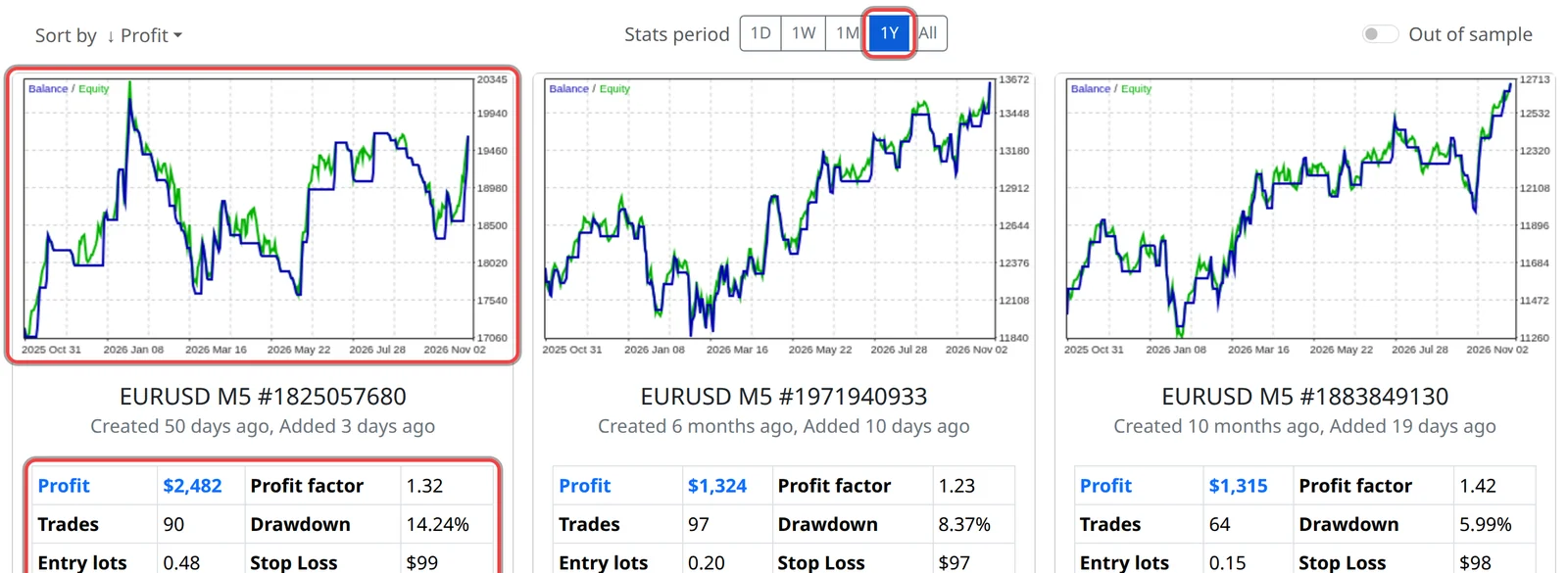
- The cards reorder. The stat you sorted by turns blue on every card.
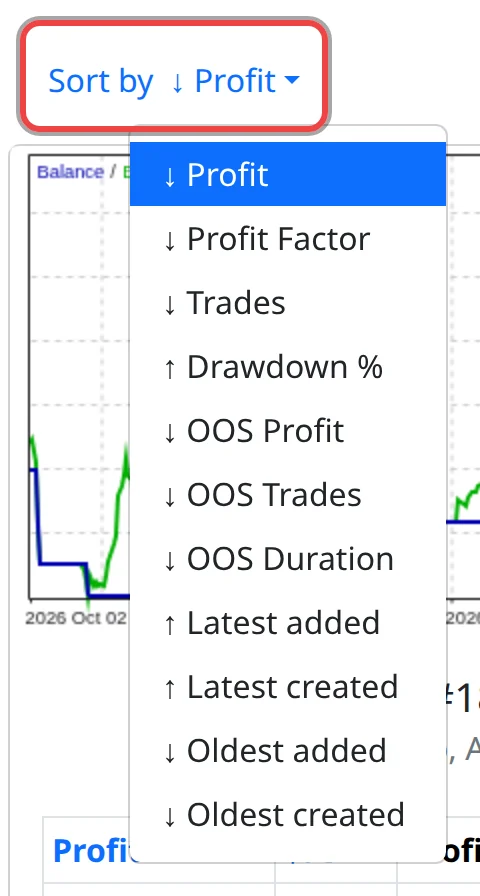
The three OOS orders sort by out-of-sample results and switch Out of sample on: see the related guide.
Change the stats period
- Click a button next to Stats period: 1D, 1W, 1M, 1Y or All.
- The charts and stats are recalculated for that window, ending now. 1D is the last trading day, 1W the last week, 1M the last month (the default), 1Y the last year.
- All shows all the price history the app holds for the robot: up to five years, less for robots on short timeframes (under three years for M5 robots).
Good to know
- A short period holds only a few trades, so its profit and profit factor say little. Check 1Y and All as well before you pick a robot.
- When a symbol has more than 12 robots, changing the period can change which robots are shown.
- The app remembers your sort order and period in this browser.