
Knowledge Base
Help Center articles
Out of sample: check a robot on data it was not built on
A robot is generated and tested on the price history up to its creation date. Everything after that date is "out of sample": prices the robot was not built on. How it did there is a fairer test than its full backtest.
Plan: anyone can browse the robots; downloading needs a plan that includes the app.
Show the out-of-sample results
- Turn on the Out of sample switch above the cards.
- Each card gets an Out of Sample profit line with trades: the profit and the number of trades since the robot was created, at your account and risk settings.
- The chart shades the out-of-sample part of the stats period: green when the robot made money since its creation, red when it lost. If the robot was created before the period starts, the whole chart is shaded.
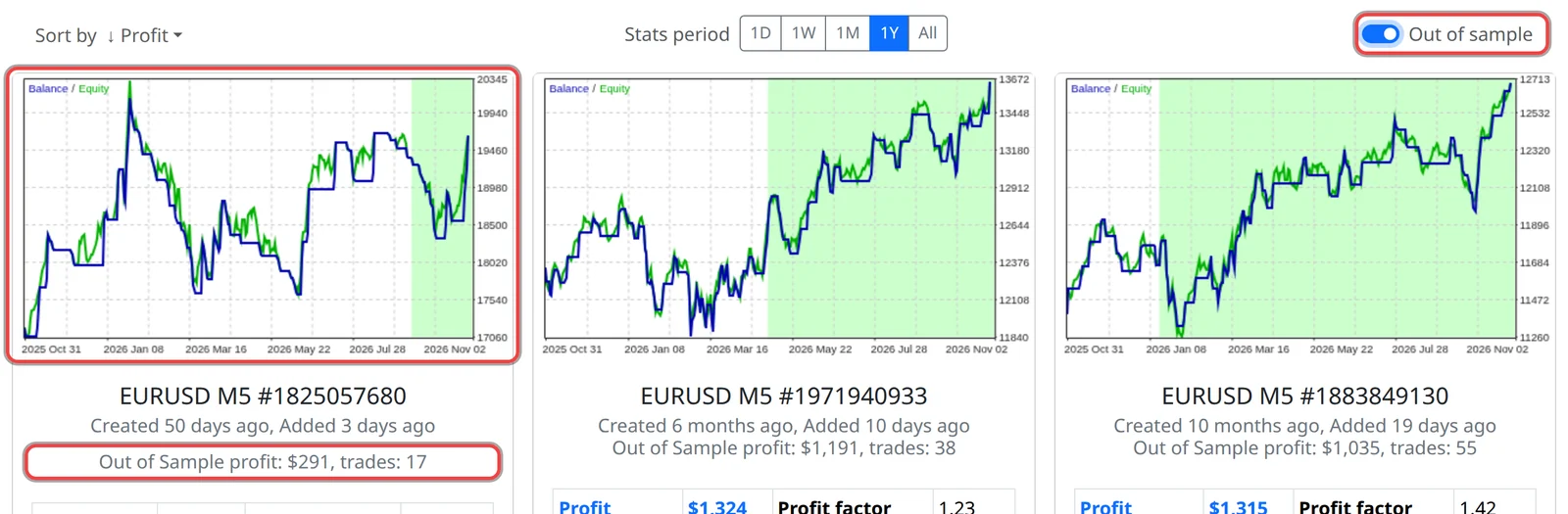
Sort by out-of-sample results
- Click Sort by.
- Choose ↓ OOS Profit (most out-of-sample profit first), ↓ OOS Trades (most trades since creation first) or ↓ OOS Duration (the robots created longest ago first, so with the longest out-of-sample record).
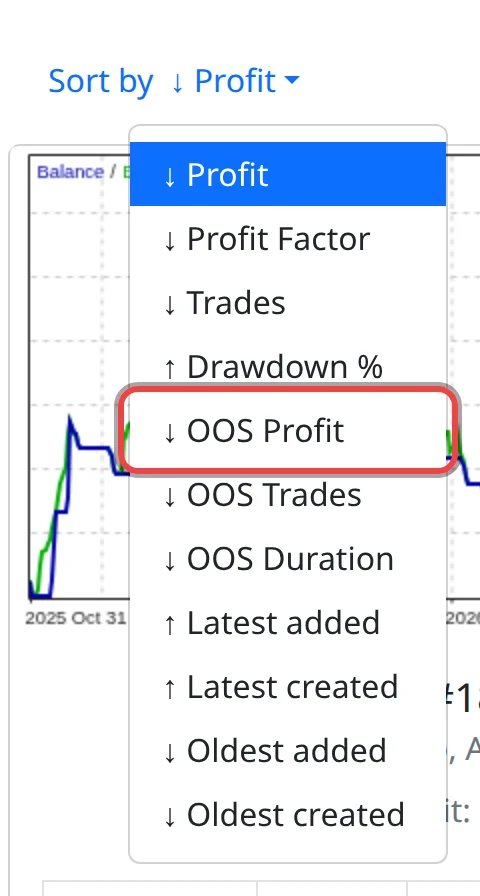
Good to know
- The out-of-sample line always covers the whole time since creation, whatever stats period you chose. The shading only shows the part inside the period.
- Choosing an OOS order turns the switch on. Turning the switch off sorts by Profit again (or by Trades after OOS Trades).
- Out-of-sample results are still a backtest on historical prices, not live trades. A robot created a few days ago has very few out-of-sample trades.