
Knowledge Base
Help Center articles
Install the robots in MetaTrader
You have downloaded a robot (a .mq4 or .mq5 file). These steps put it into MetaTrader and start it on the right chart.
Plan: a plan that includes the Prop Firm Robots App.
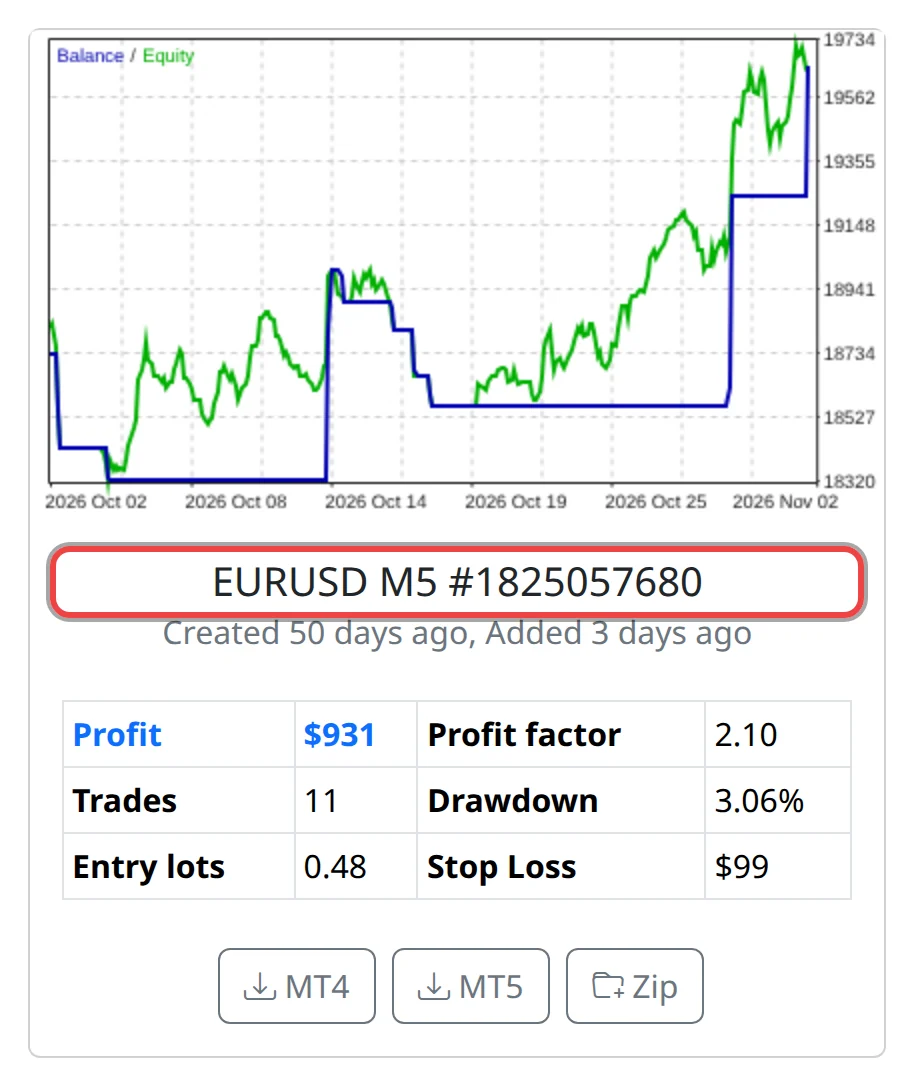
Note the chart the robot needs
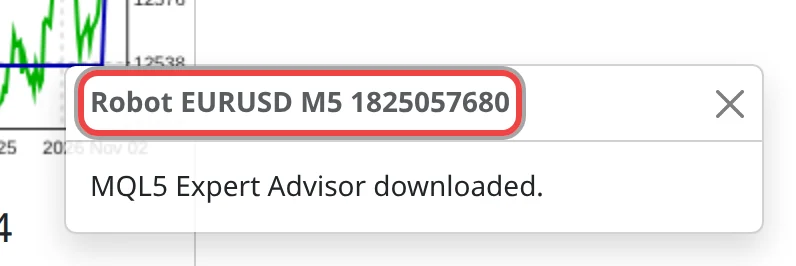
The card name, such as EURUSD M5 followed by a number, tells you the symbol (EURUSD), the timeframe (M5, 5-minute bars) and the magic number (the ID the robot puts on its trades). The downloaded file and the robot in MetaTrader have the same name, so you can tell robots apart.
Copy the file into MetaTrader
- In MetaTrader, click File › Open Data Folder.
- Open
MQL4\Experts(MetaTrader 4) orMQL5\Experts(MetaTrader 5). - Copy the robot file into it. For a ZIP, unzip it first and copy the files from its folder.
- Press F4 to open MetaEditor. Open the file from Experts in its Navigator and click Compile. The Errors tab should end with 0 errors.
- Back in MetaTrader, in Navigator, right-click Expert Advisors and choose Refresh. The robot appears in the list.
Start the robot
- Open a chart of the symbol: right-click it in Market Watch and choose Chart Window. If your broker adds an ending, such as EURUSD.pro, use that symbol.
- Set the chart's timeframe to the one in the name, for example M5.
- Turn on Algo Trading (MetaTrader 5) or AutoTrading (MetaTrader 4) in the toolbar. The button shows a green icon when it is on.
- Drag the robot from Navigator onto the chart.
- On the Common tab, tick Allow Algo Trading (MetaTrader 5) or Allow live trading (MetaTrader 4), then click OK.
- Check the top right corner of the chart: a blue hat (MetaTrader 5) or a smiling face (MetaTrader 4) means the robot may trade. The robot also writes its magic number at the top left of the chart.
Good to know
- One chart per robot. Two robots for EURUSD M5 need two EURUSD M5 charts.
- The robot only trades while MetaTrader is open and connected. If your computer is switched off at night, use a VPS (a computer in a data centre that runs all the time).
- The robot checks for a signal when a new bar opens, and many trade only a few times a month, so don't expect a trade straight away.
- Check your prop firm's rules on EAs, and start on a demo or trial challenge account.