
Knowledge Base
Help Center articles
Set your account size and risk per trade
Tell the app your account size and how much you are willing to lose on one trade. It then sizes every robot for you, on the cards and in the robots you download.
Plan: anyone can try these settings; downloading the robots needs a plan that includes the app.
Set your account and risk
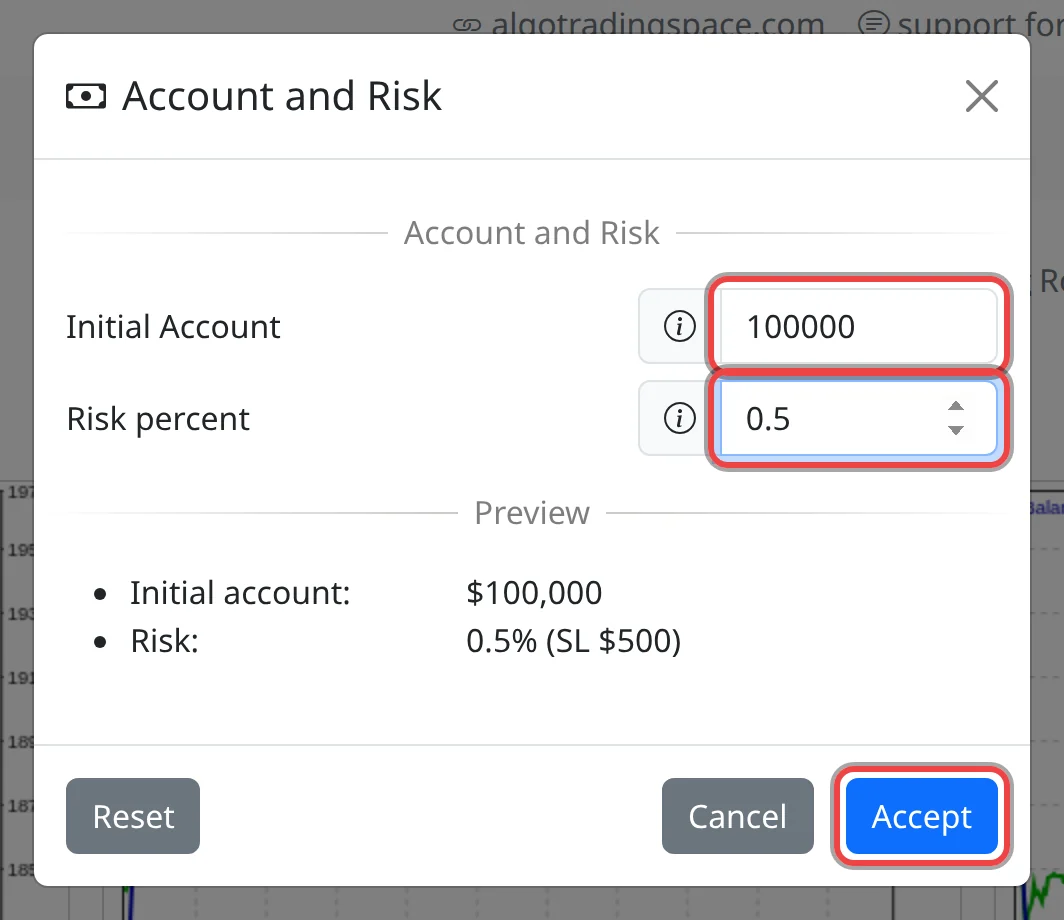
- Click the line under the symbol, for example Account $10,000 Risk 1% (SL $100). The Account and Risk dialog opens.
- In Initial Account, type your account size in US dollars (default 10000).
- In Risk percent, type how much of the account one losing trade may cost, from 0.1 to 20 (default 1).
- Check the Preview: it shows the account and the risk in dollars, for example 0.5% (SL $500) on a $100,000 account.
- Click Accept. Cancel keeps the old values, Reset goes back to $10,000 and 1%.
See the effect on the robots
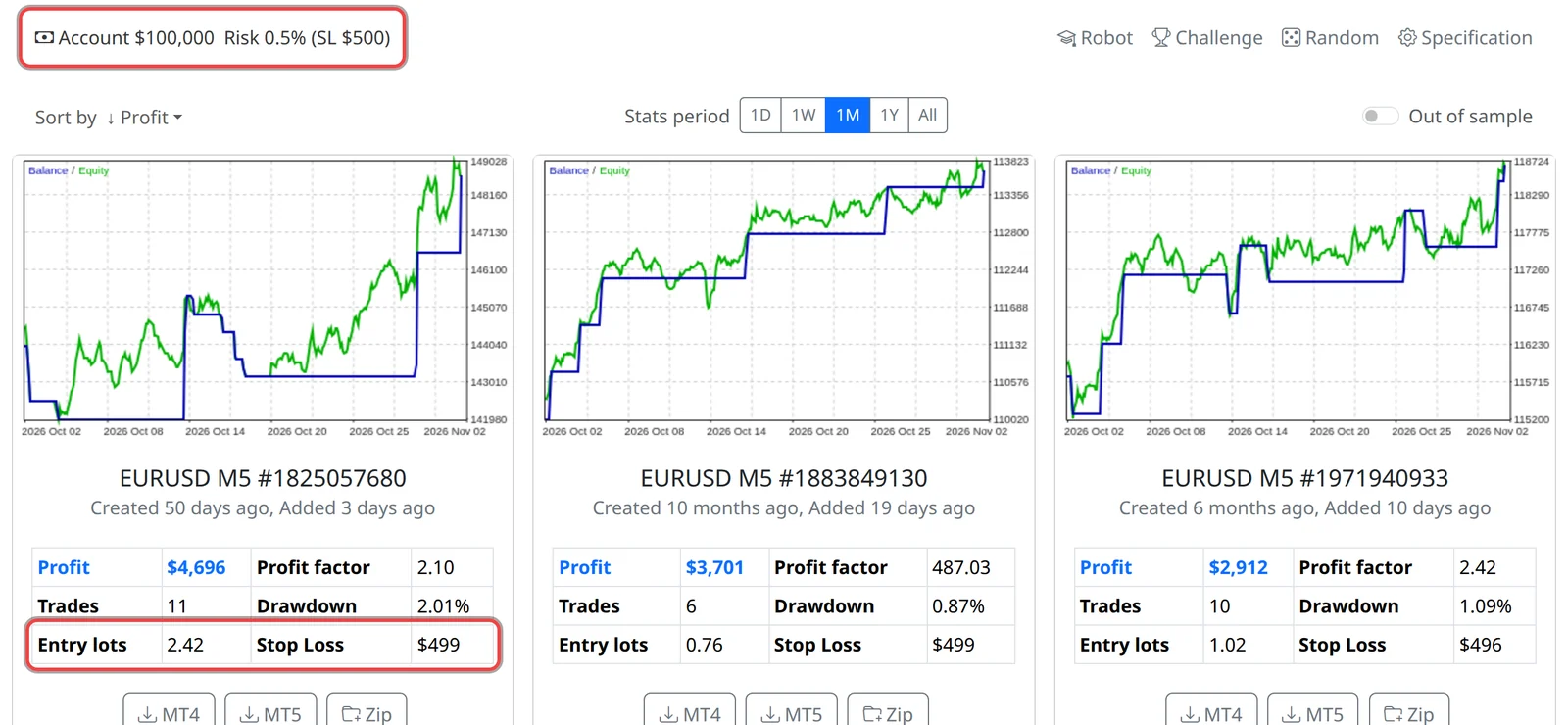
- Each card now shows new Entry lots (the trade size; a lot is the standard trade unit, 100,000 units of currency on most forex pairs). The app picks the size at which a trade closed at the robot's stop loss loses about your risk amount, spread and commission included.
- Stop Loss shows that loss in dollars. It is usually a little under your risk, because lots are rounded down to 0.01.
- Profit, Drawdown and the chart change with the trade size. Profit factor and Trades stay the same.
- Download the robot: it trades with the Entry lots shown on its card.
Good to know
- The downloaded robot keeps that fixed lot size. It doesn't resize as your balance grows or falls: download it again if your account size changes.
- The smallest size is 0.01 lots. On a small account with a wide stop loss, one trade can then risk more than you chose: check Stop Loss.
- If you set Account size or Risk % in Challenge, those values win: this dialog shows them locked with (challenge).
- Robots you downloaded earlier don't change. Download again after you change these settings.