
Knowledge Base
Help Center articles
Short answers to the questions traders ask most about the Prop Firm Robots App. Each answer links to a step-by-step guide with pictures of the app. The whole guide is in Prop Firm Robots App user guide: start here.
Plan: anyone can browse the robots; downloading needs a plan that includes the Prop Firm Robots App.
What is the Prop Firm Robots App?
A web app on your Algo Trading Space account that shows ready-made trading robots (Expert Advisors) for forex pairs, gold, silver, indices and crypto, each with its backtest results. It sizes the robots to your account and risk, and you download them for MetaTrader 4 or 5. See What the Prop Firm Robots App is and how it works.
Does the app trade for me or connect to my broker?
No. The app doesn't connect to your broker or prop firm. You download a robot and run it in your own MetaTrader, which places the trades. See Install the robots in MetaTrader.
Do I need a plan?
Anyone can open the app and browse the robots. Downloading them needs an Algo Trading Space account with a plan that includes the app. See Open the app and sign in.
Will it work with my prop firm?
The robots run in MetaTrader 4 and 5, so they work wherever your prop firm gives you an MT4 or MT5 account and allows Expert Advisors. Read your firm's rules first: whether EAs are allowed, rules on news trading, holding trades over the weekend, and identical trades across accounts. Enter the challenge limits in the app so the robot respects them. See Set your prop firm challenge rules.
Do I need to test the robots first?
Yes. The results in the app are backtests on one data feed; your broker's prices, spreads and trading hours differ. Backtest every robot you download in MetaTrader, then run it on a demo or trial challenge before a paid one. See Backtest a robot in MetaTrader before you trade it.
Why isn't my robot opening trades?
Most often the robot is simply waiting for its signal: many robots trade only a few times a month. Other common causes are Algo Trading switched off, the robot on the wrong symbol or timeframe, the trading hours or maximum spread you set, the news filter, or a daily or account protection that has been reached. Work through My robot isn’t opening trades: what to check.
What lot size will the robot use?
The app works out the lot size from your account size and the risk per trade you set, and writes it into the robot when you download it. The lots don't grow with your account: when your balance changes a lot, download the robot again. See Set your account size and risk per trade.
Do I get both MT4 and MT5 versions?
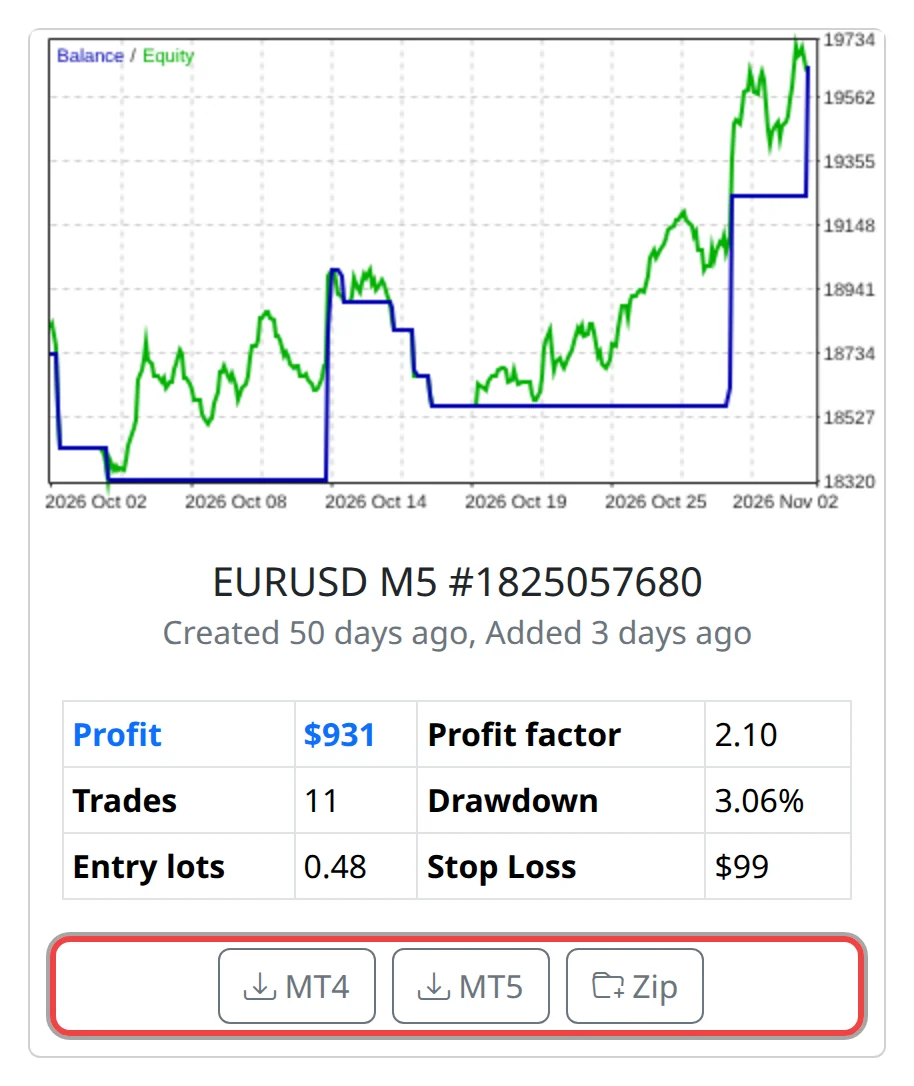
Yes. Every robot has an MT4 and an MT5 button. You get the robot's source file (.mq4 or .mq5), which MetaTrader compiles for you. See Download a robot for MT4 or MT5.
Can I download several robots at once?
Yes. Add robots to the ZIP from their cards, or add the top 3, 5 or 10 at once, then download the ZIP for MT4 or MT5. See Download several robots in one ZIP.
Can I use the same robots on several challenges?
Yes, on as many accounts as your prop firms allow. If a firm flags identical trades across accounts, switch on Randomize Robots upon Export before each download: each copy then gets slightly different stop loss, take profit and indicator values and its own magic number. See Make your robots unique (Random).
What risk protections can I add?
Before you download, you can set the trading session, a Friday close, a maximum spread, a limit on open positions and lots, a daily loss limit, minimum and maximum equity, and a news filter. Challenge Options fill in the daily loss, minimum equity and maximum equity for you. See Set trading hours, news filter and account protections.
How are the robots chosen and ranked?
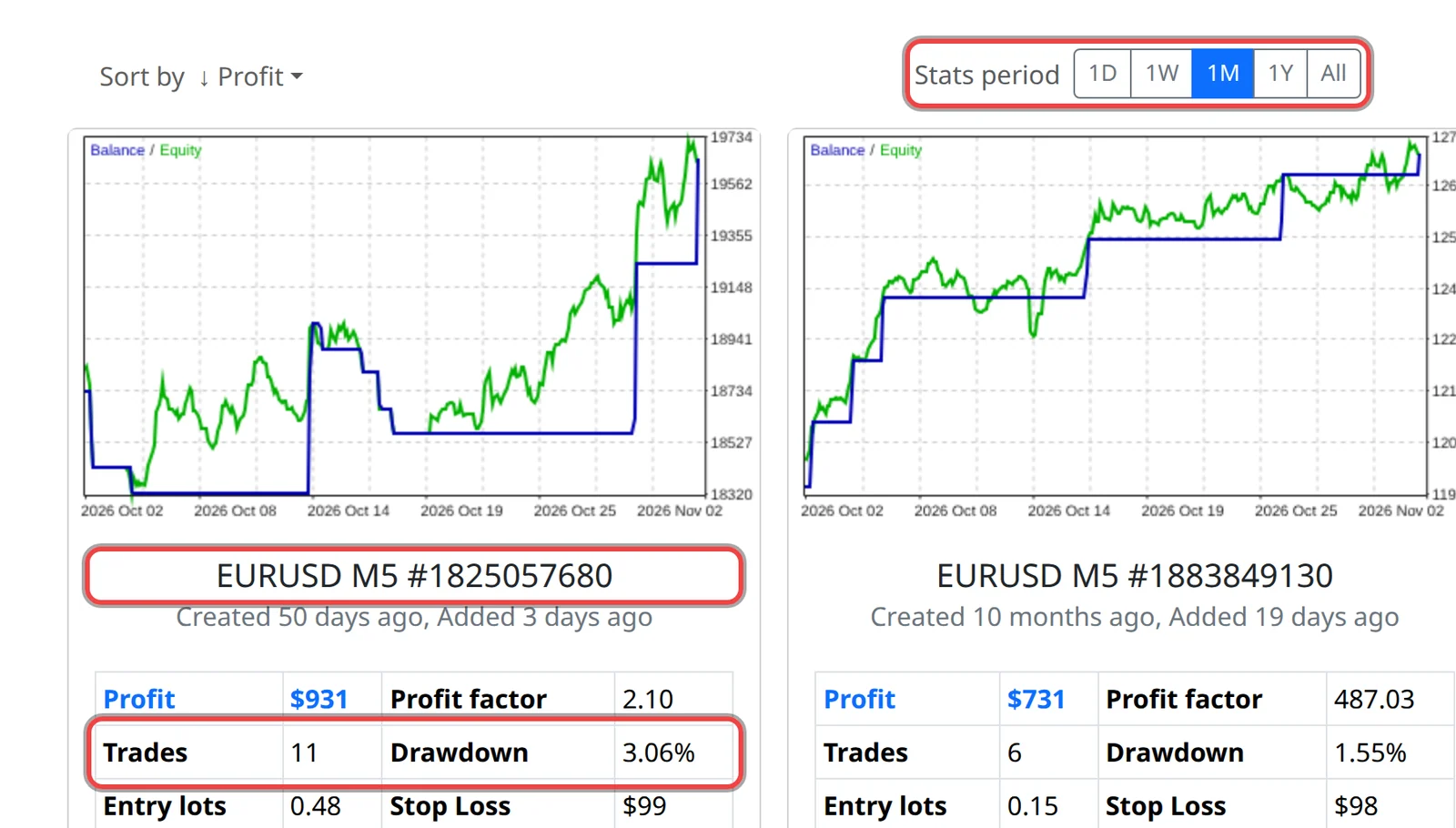
You pick a symbol and the app shows its robots, up to 12, sorted by the measure you choose for the stats period you choose. The Out of sample switch shows each robot's results only since it was created, on data it wasn't built on. Winners & Latest shows the best robots across symbols. See Sort the robots and change the stats period and Out of sample: check a robot on data it was not built on.
How often are robots added or updated?
New robots are generated and added continuously. Each card says when the robot was created and when it was added to the app. A robot you downloaded doesn't change by itself; download again to get the current set. See Pick a symbol and read the robot cards.
Why are my results different from the app's?
Your broker's price history, spreads, commissions and server time differ from the data the app uses, and so does the period you test. Small differences are normal. A robot whose results are very different on your broker's data is not a good fit for it. See Backtest a robot in MetaTrader before you trade it.
My broker's symbol has another name or contract size. What do I do?
Attach the robot to your broker's chart for the same instrument (for example EURUSD.r or GER40.cash). For indices, metals and crypto, check the symbol's digits and contract size in Specification before you download. See Match your broker’s symbol specification.
Do I need a VPS?
The robot trades only while MetaTrader is running and connected. If your computer sleeps or is switched off at night, run MetaTrader on a VPS, a computer in a data centre that stays on all the time.
How long does it take to pass a challenge?
No one can promise that, or that you will pass. It depends on the robots, the market, your risk settings and your firm's rules. Use a risk that keeps you well inside the daily and maximum loss limits, and give the robots time: many trade only a few times a month.
What if my challenge account goes into drawdown?
Don't raise the risk to win it back. Check that the daily loss and minimum equity protections are set, look at how the robot behaved in its backtest drawdowns, and decide whether to keep it, lower its risk or replace it with another robot.
Do I need trading or coding experience?
No coding. You need to install an Expert Advisor in MetaTrader and attach it to a chart; the install guide shows every step. Learn what the stats on a card mean before you rely on them. See Install the robots in MetaTrader.